
Section One
Getting in
Everything starts with one email. It arrives when we set up your account and it contains the only link you need.
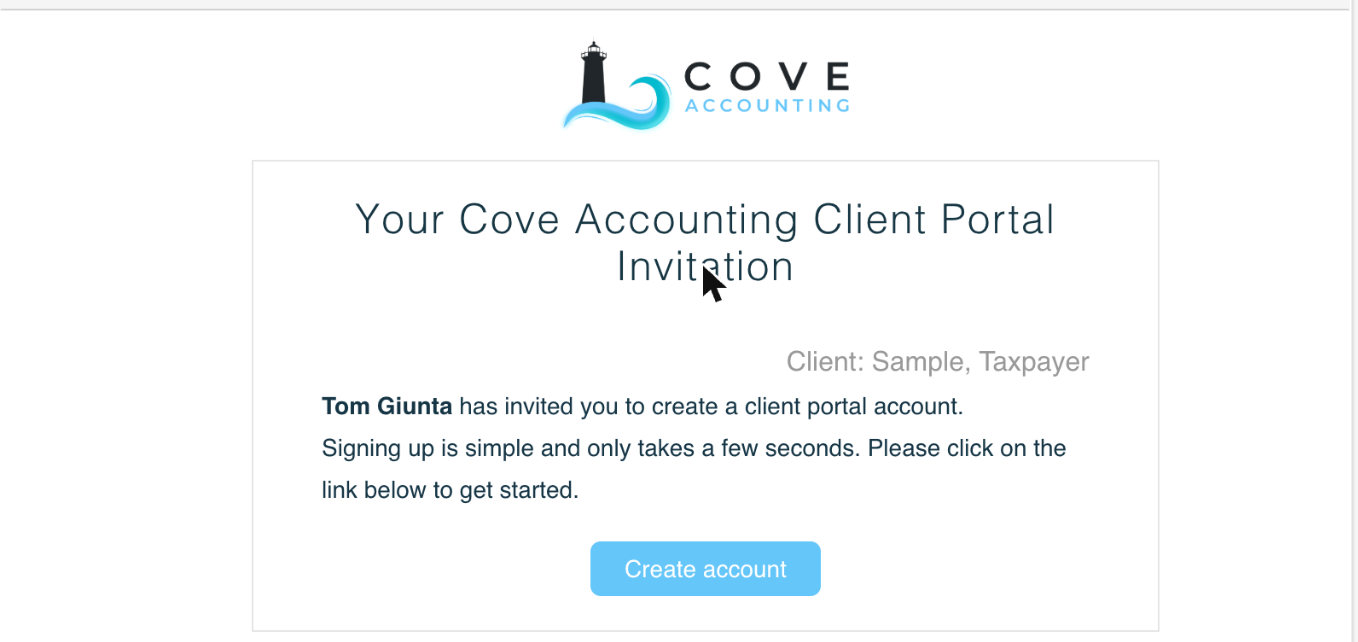
Step 1. Find the invitation
The subject line is Your Cove Accounting Client Portal Invitation. The sender shows as Cove Accounting, but the address behind it is notifications@coveaccountants.clientportal.com. That is our portal software, not a stranger. If it is not in your inbox, check your spam folder.
Step 2. Set up your login
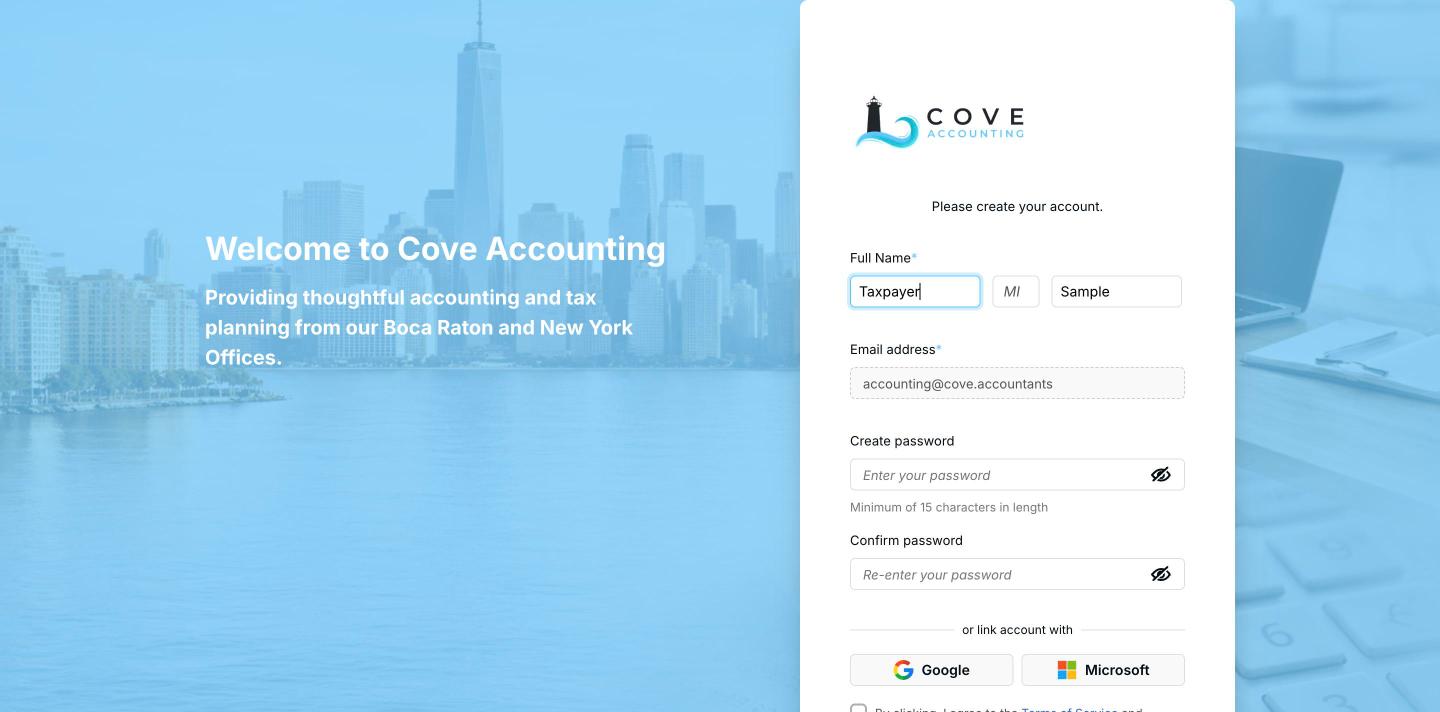
The link opens a short form. You have two ways to finish it, and one is considerably faster.
- Link a Google or Microsoft account. Click the Google or Microsoft button and sign in the way you already do. Nothing to remember and nothing to reset later.
- Or create a password. Fill in your name and email, then choose a password. The minimum is 15 characters, so a short phrase works better than a single word.
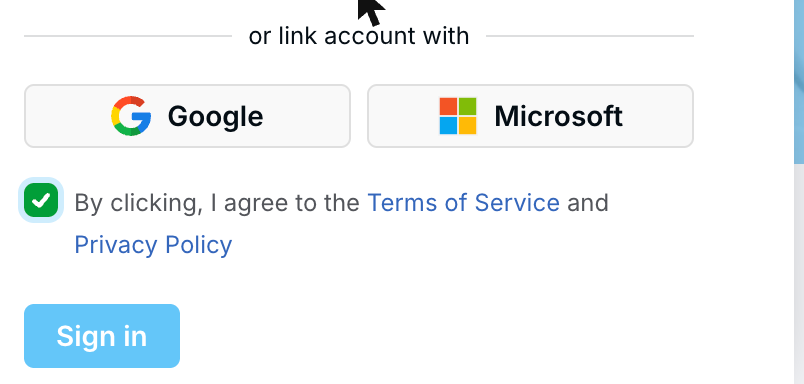
The button at the bottom says Sign in, not Create account. It is the right button. Nothing happens until the terms checkbox above it is ticked.
Step 3. The first screen you will see
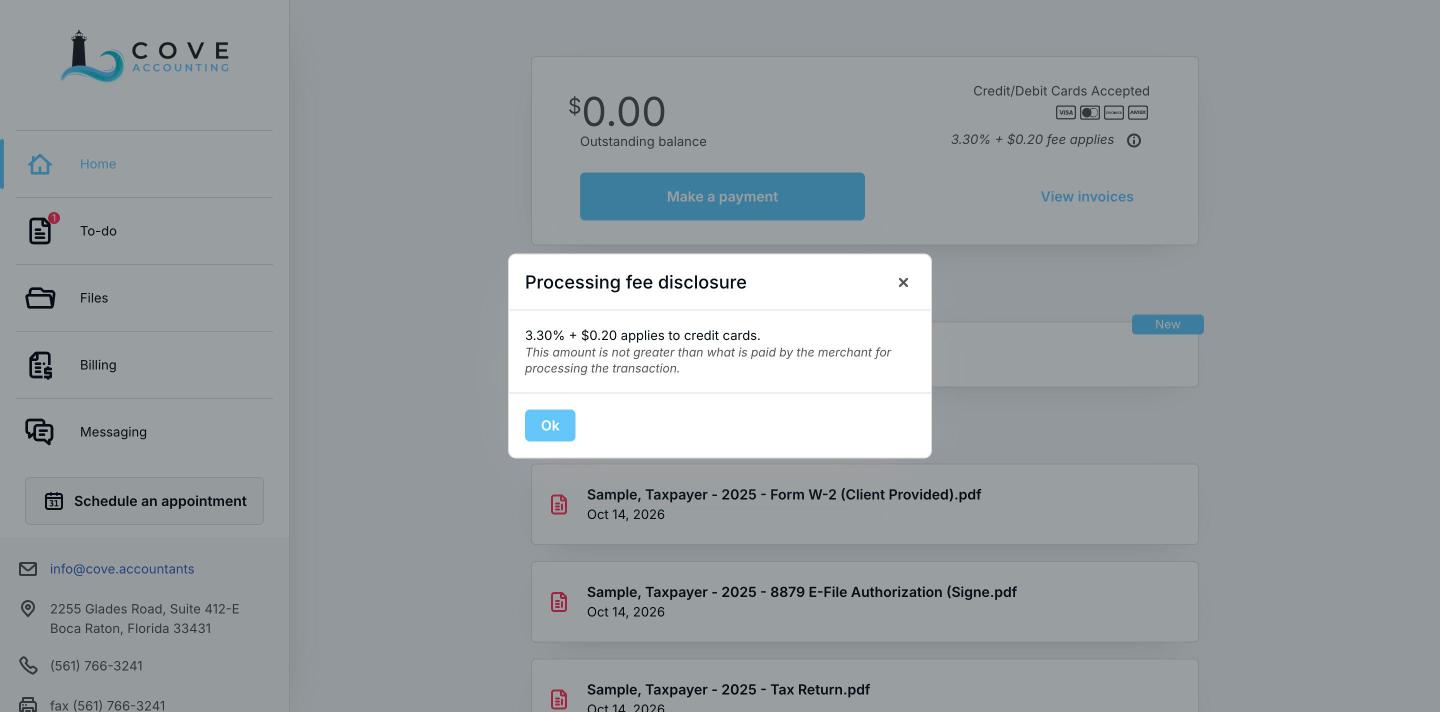
A short notice appears about credit card processing fees before anything else loads. It applies if you later choose to pay an invoice by card. Section seven covers the option that avoids it. Click OK and it will not come back.
From here on, you sign in at coveaccountants.clientportal.com. Bookmark it.
Section Two
Your dashboard
The home screen holds three things, top to bottom: what you owe, what we are waiting on from you, and the documents most recently added to your file.
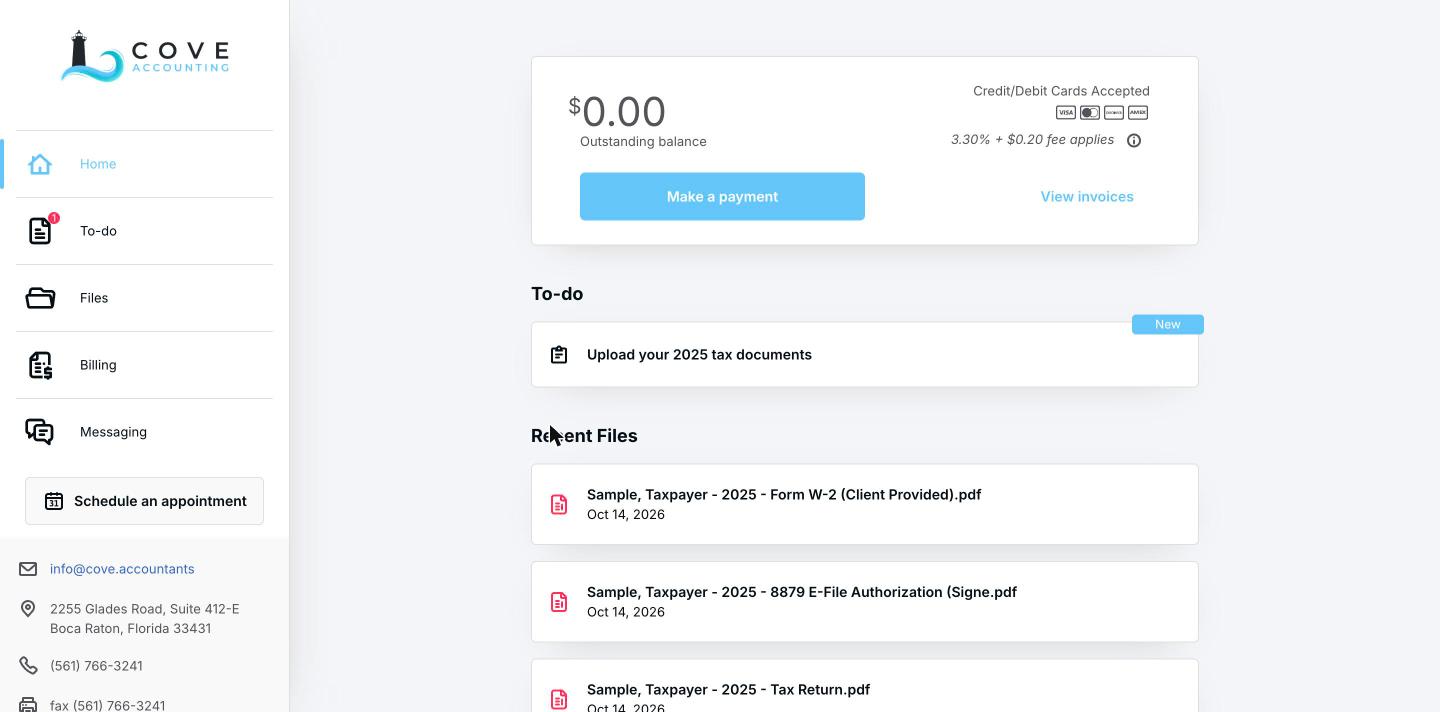
The left-hand menu is the same on every screen:
- Home. This dashboard.
- To-do. Anything we have asked you for.
- Files. Every document, yours and ours, organized by year.
- Billing. Invoices, payment, and payment history.
- Messaging. Secure messages between you and the firm.
- Schedule an appointment. Our live calendar.
Section Three
Sending us documents
This is what the portal is really for. Anything you would otherwise email or drop off goes here instead: W-2s, 1099s, mortgage interest statements, closing documents, brokerage summaries, bank statements.
Where things live
Open Files. The top level is the tax year. Inside that is the engagement, and inside that are the categories we file documents into.
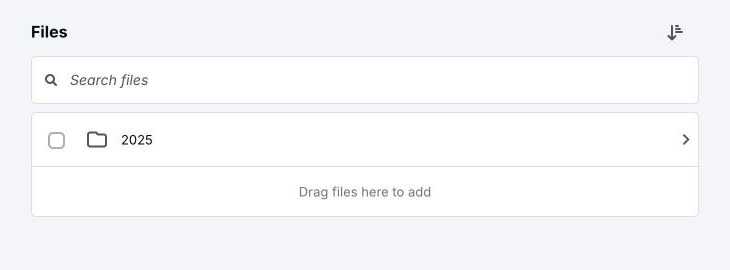
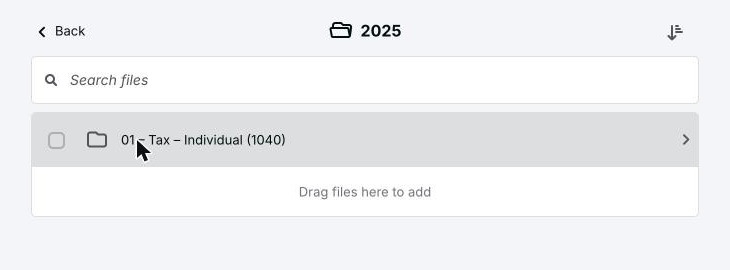
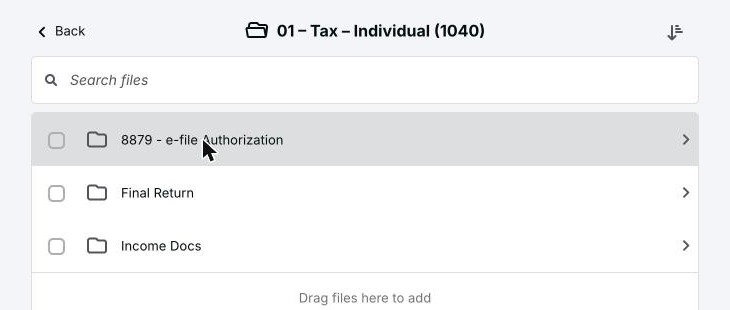
You only see folders that hold something. Your file carries more categories than this behind the scenes, and they appear as they fill. Nothing is missing.
Three ways to upload
- The Add a File button at the bottom of the screen. Pick the folder first, then upload into it.
- Drag and drop. Drag files from your desktop onto the folder area marked Drag files here to add.
- Your phone camera, through the mobile app. Section eight covers it.
If you are not sure which folder something belongs in, put it anywhere in the year. We file everything properly on our end, and we rename every document to the firm's standard. There is no naming convention for you to learn.
Section Four
Tasks and requests
When we need something specific from you, it appears under To-do and on your dashboard. This replaces the back and forth of a long email chain. One list, and it is always current.
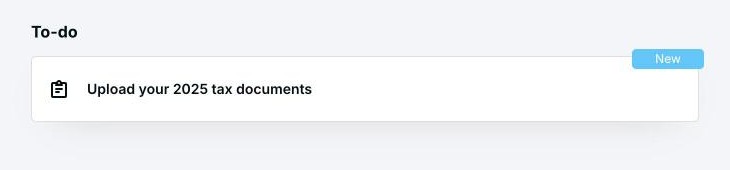
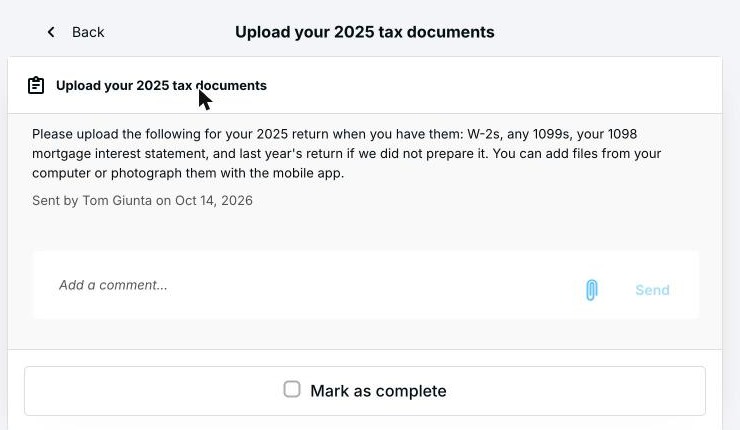
Inside a request you can upload directly against it, add a comment if something does not apply or does not exist, and tick Mark as complete when you are finished. We see all three immediately.
Use the comment box rather than leaving an item open. "No mortgage this year, we sold in March" tells us more than silence, and it keeps your return moving.
Section Five
Your completed work
Finished work goes back into the same Files area, under the year it belongs to. For an individual return you will find:
- Final Return. Your complete return as filed, for your records and for anyone who asks for it, such as a lender.
- 8879 e-file Authorization. The signed form authorizing us to transmit the return.
- Income Docs. The source documents you provided, kept alongside the return.
Open any folder and use the download icon to save a copy. Your documents stay available in the portal year over year, so last season's return is always two clicks away.
Download your own copy of the final return when you receive it. The portal is a convenience, not your only record.
Section Six
Secure messages
Ordinary email is not a safe place for a Social Security number, a bank account, or a draft return. The portal's message center is encrypted, and it keeps the whole conversation in one place instead of scattered across inboxes.

You will find a welcome message waiting the first time you open Messaging. Reply there any time, and that thread stays open for the life of the engagement. We check messages throughout the business day.
Send anything involving your tax or financial information through the message center rather than by email. If something is genuinely urgent, call the office.
Section Seven
Invoices and payment
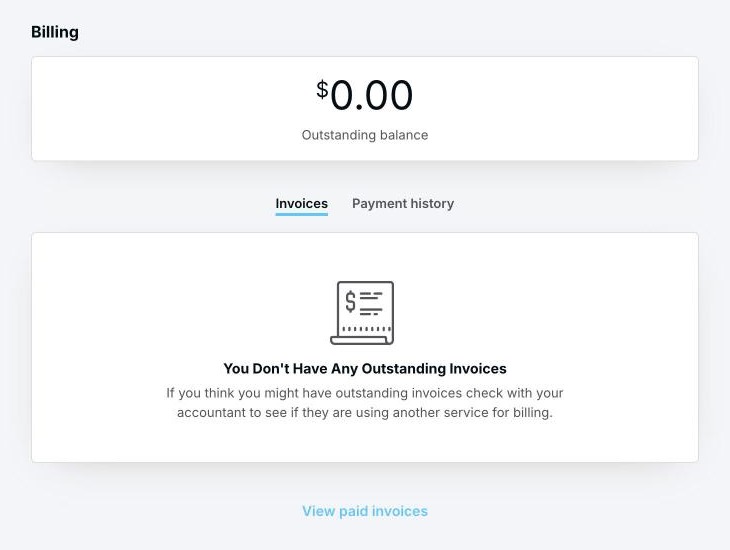
The Billing tab shows your outstanding balance, your open invoices, and a full payment history. Everything is in one place and available any time.
Choose bank transfer
Both options sit behind the same Make a payment button. One of them is free to you.
| Method | Processing fee | On a $900 invoice |
|---|---|---|
| Bank transfer (ACH) | None | $0.00 |
| Credit or debit card | 3.30% + $0.20 | $29.90 |
The card fee belongs to the payment processor rather than to us, and it is not capped, so it grows with the size of the invoice. Bank transfer carries no fee at all. Unless you have a reason to put the payment on a card, it is the one to use.
Section Eight
The mobile app
The same account works on your phone. Search for Canopy Client Portal in the App Store or on Google Play, then sign in exactly as you do on the web.
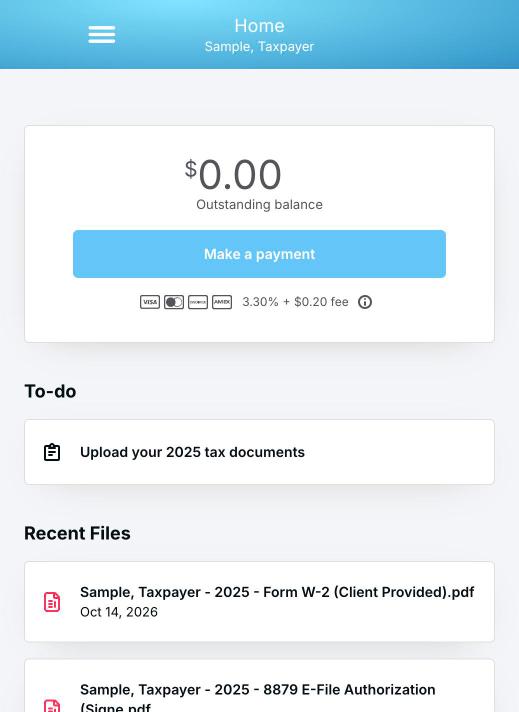
The app earns its place for one thing above all others: photographing documents. Rather than scanning a stack and emailing it, photograph each page straight into the right folder as it arrives in your mail. It is also the quickest way to check a to-do item or read a message between meetings.
Section Nine
Getting help
Call either office or email us and we will walk you through any of this. There is no charge for portal support.
We will never email or text you asking for your password, your Social Security number, or your bank details, and we will never ask you to send a tax document to an address you have not used with us before. The only portal address is coveaccountants.clientportal.com. If a message claiming to be from us asks for any of that, do not reply to it. Call the office at the number below and we will confirm.